
How to Correctly Configure IPTV Settings for Smooth Streaming
On this page
- Start here: the five IPTV settings that fix most problems
- App IPTV settings, player by player
- Decoder: hardware or software?
- Buffer size
- Guide and time zone IPTV settings
- Device display settings
- Network IPTV settings: Wi-Fi and router
- Configure IPTV settings for the whole family
- IPTV settings for 4K vs. HD
- A step-by-step routine when streams misbehave
- IPTV settings you should leave alone
- More questions about IPTV settings
- Our recommended starting configuration
- IPTV settings on Smart TVs, Apple TV and MAG boxes
- Checking your internet the right way
- When settings aren't the problem
- Next steps
Most buffering, stuttering and "wrong time in the guide" complaints we see have nothing to do with the channels. They come down to IPTV settings: a decoder that doesn't suit the device, a stream format the app handles poorly, a guide set to the wrong time zone, or a Wi-Fi connection fighting with a dozen other devices. The good news is that a handful of changes fix most of it. This guide covers the IPTV settings that matter in the app, on the device and on your home network, and the order to try them in.
Start here: the five IPTV settings that fix most problems
- Decoder: hardware decoding on for 4K and HD; switch to software if you see green screens or black video.
- Stream format: if a channel stutters in one format (MPEG-TS), try the other (HLS), or vice versa.
- EPG time shift: set the guide to your time zone.
- Display output: set the streaming device to Auto resolution and enable frame-rate matching.
- Connection: Ethernet or 5 GHz Wi-Fi for the TV you use most.
Change one thing at a time and test for a few minutes. That way you'll know which change helped.
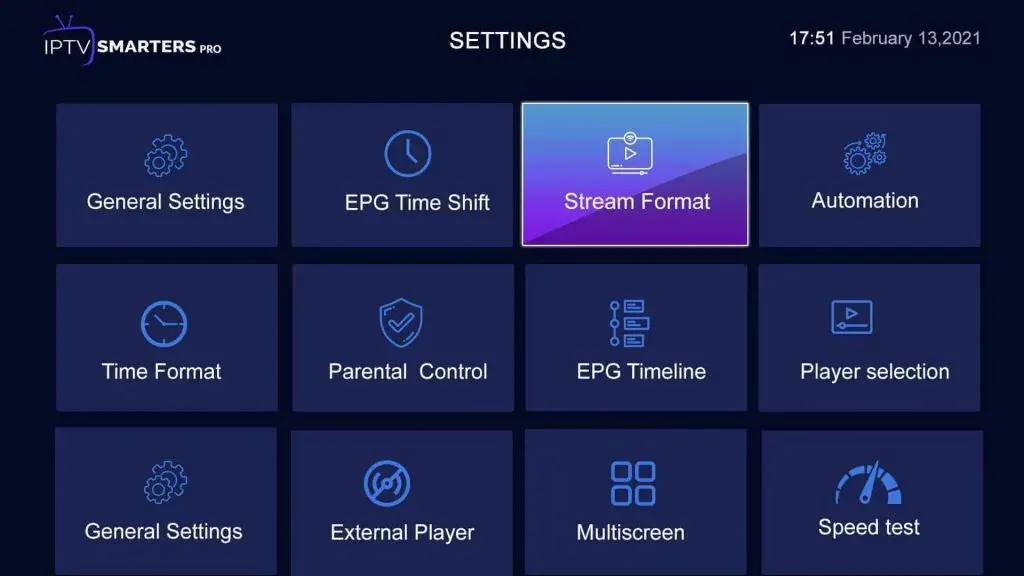
App IPTV settings, player by player
| Setting | TiviMate | IPTV Smarters Pro | XCIPTV |
|---|---|---|---|
| Decoder | Settings › Playback › Decoder | Settings › Player selection / decoder | Settings › Player |
| Stream format | Playlist settings | Settings › Stream format | Settings › Stream format |
| Buffer size | Settings › Playback › Buffer | Settings › Buffer size | Settings › Player |
| EPG time shift | Settings › EPG | Settings › Time format / EPG timeshift | Settings › EPG |
| Parental control | Settings › Parental control | Settings › Parental control | Settings › Parental control |
Menu names vary slightly between app versions, but the options are usually in these places.
Decoder: hardware or software?
Hardware decoding uses your device's video chip. It's more efficient and handles 4K and HD best. Software decoding uses the processor and can help when a specific stream shows a black screen, green blocks or no picture with sound. Leave hardware on by default and switch only for problem channels.
Buffer size
A bigger buffer stores a few more seconds of video before playing, which smooths over short internet dips but adds a small delay when switching channels. If you get brief freezes during big games, raise the buffer one step. If channel switching feels slow and streams are stable, lower it.
Guide and time zone IPTV settings
If the program guide shows the evening news at 4 a.m., your EPG time shift is wrong. Set it so listings match your local time: Eastern, Central, Mountain or Pacific. Then refresh the guide. It's a two-minute fix that makes the service feel far more polished.
Device display settings
- Fire TV: Settings › Display & Sounds › Display › Video Resolution: Auto; turn on Match Original Frame Rate.
- Apple TV: Settings › Video and Audio › Match Content › Match Dynamic Range and Match Frame Rate.
- Android TV / Google TV: Settings › Display & Sound › Advanced display settings (names vary by brand).
- TV picture mode: Movie, Filmmaker or Standard mode looks more natural than Vivid.
Network IPTV settings: Wi-Fi and router
The network is where the biggest improvements usually hide:
- Ethernet first. A cable beats any Wi-Fi setting.
- 5 GHz over 2.4 GHz. If your router shows two networks, connect the TV to the 5 GHz one.
- Router placement. Out in the open, not in a cabinet or behind the TV.
- Reboot the router every few weeks; many home routers slow down over time.
- Check your speed at the TV, not next to the router. The FCC broadband speed guide lists about 25 Mbps for 4K streaming.
- DNS: if channel lists load slowly, switching the device or router to a well-known public DNS service can help.
Configure IPTV settings for the whole family
- Set a parental PIN and lock categories you don't want the kids to browse.
- Create favorites for each person so nobody has to scroll.
- Hide unused groups to make browsing faster.
- Turn on auto-start in apps that support it, so the TV opens straight to live channels.
IPTV settings for 4K vs. HD
The best IPTV settings depend on what you're watching:
| Setting | 4K on a big TV | HD on a smaller TV or Wi-Fi |
|---|---|---|
| Channel version | 4K / UHD | FHD or HD |
| Decoder | Hardware | Hardware (software if problems) |
| Buffer | Medium to large | Small to medium |
| Connection | Ethernet strongly recommended | 5 GHz Wi-Fi is fine |
| Frame-rate matching | On | On |
A step-by-step routine when streams misbehave
When something goes wrong, work through these steps in order. Each one takes a minute, and most problems are solved by step four:
- Try another channel. If only one channel is affected, it's the stream; tell us its name.
- Restart the app, then the streaming device.
- Restart the router and wait two minutes before testing.
- Switch to the FHD version of the channel.
- Change the decoder (hardware ↔ software) in your IPTV settings.
- Change the stream format (TS ↔ HLS).
- Raise the buffer one step.
- Test another streaming app. If everything buffers, contact your internet provider.
IPTV settings you should leave alone
Not every option needs changing. User-agent fields, custom headers and advanced network options exist for special cases. Unless we ask you to change them, leave them at their defaults: the wrong value can stop streams from loading at all. The same goes for "external player" options: they're useful for troubleshooting, but the built-in player is usually the most stable choice for daily viewing.
More questions about IPTV settings
Should I use a VPN with my IPTV settings?
It is not required. A VPN can help if your internet provider slows video at busy times. If you use one, choose a nearby server so you do not add delay.
What buffer size is best?
Start with the app default. Raise it one step if you see short freezes during busy games; lower it if channel switching feels slow.
Why do my IPTV settings reset?
Clearing app data or reinstalling the app resets its settings. Clearing only the cache keeps them.
Does screen resolution in the app matter?
Most apps follow the device resolution. Set the streaming device to Auto and let the TV scale the picture.
Can Wi-Fi extenders help?
Mesh Wi-Fi systems usually help; cheap single extenders can add delay. Ethernet or powerline adapters are more reliable for the main TV.
Our recommended starting configuration
If you just want settings that work for most homes, use these: hardware decoder, default stream format, medium buffer, EPG time shift set to your time zone, parental PIN on, favorites set up, device resolution on Auto with frame-rate matching, and Ethernet on the main TV. From there, change one setting at a time only if something isn't right.
IPTV settings on Smart TVs, Apple TV and MAG boxes
| Device | Most useful settings |
|---|---|
| Samsung / LG Smart TV | Picture mode (Movie/Filmmaker), motion smoothing low or off, network on 5 GHz or cable, app cache cleared occasionally |
| Apple TV | Match Content on, Ethernet on the Wi-Fi + Ethernet model, app-level subtitle and EPG settings |
| MAG box | Correct portal URL, time zone in system settings, reboot after changes, firmware updates when offered |
| Android TV / Google TV | Hardware decoding in the app, display resolution Auto, remove unused apps to free memory |
Smart TV apps have fewer options than streaming-stick apps, so the network and picture settings do more of the work there.
Checking your internet the right way
Speed tests are useful, but only if you run them correctly. Run the test on the streaming device itself if it has a speed-test app, or on a phone standing next to the TV, not next to the router. Test at the time you usually watch, like Sunday afternoon or 8 p.m. on a weekday, when your neighborhood network is busiest. Run it two or three times and look at the lowest result, not the highest.
If that number is under about 25 Mbps, the FHD versions of channels will give you a smoother picture than 4K. If results jump around wildly, the problem is usually Wi-Fi, and an Ethernet cable or a mesh system is the fix, not a different IPTV settings profile. Retest after each change so you can see what actually helped.
Keep a note of every change you make to your IPTV settings, along with the date, even just a line in your phone's notes app. If something gets worse, you'll know exactly what to undo, and if you contact us for help, that list lets us skip straight to the useful questions. It's a small habit that saves a lot of guesswork.
When settings aren't the problem
If a single channel keeps failing while others are fine, it's probably the stream, not your IPTV settings. Send us the channel name and time on WhatsApp and we'll check it. If every channel buffers, test your connection with another streaming app; if that also struggles, the issue is the internet line.
Next steps
With the right IPTV settings, most setups go from frustrating to smooth in 15 minutes. For device-specific guides, see our IPTV installation guide, including Fire TV Stick and TiviMate. For picture quality in depth, read about 4K IPTV.