
IPTV Fire Stick Setup: From Box to First Channel in 10 Minutes
A step-by-step IPTV Fire Stick guide for the Fire TV Stick, 4K Max and Fire TV Cube, with the best IPTV player apps and fixes for common problems.
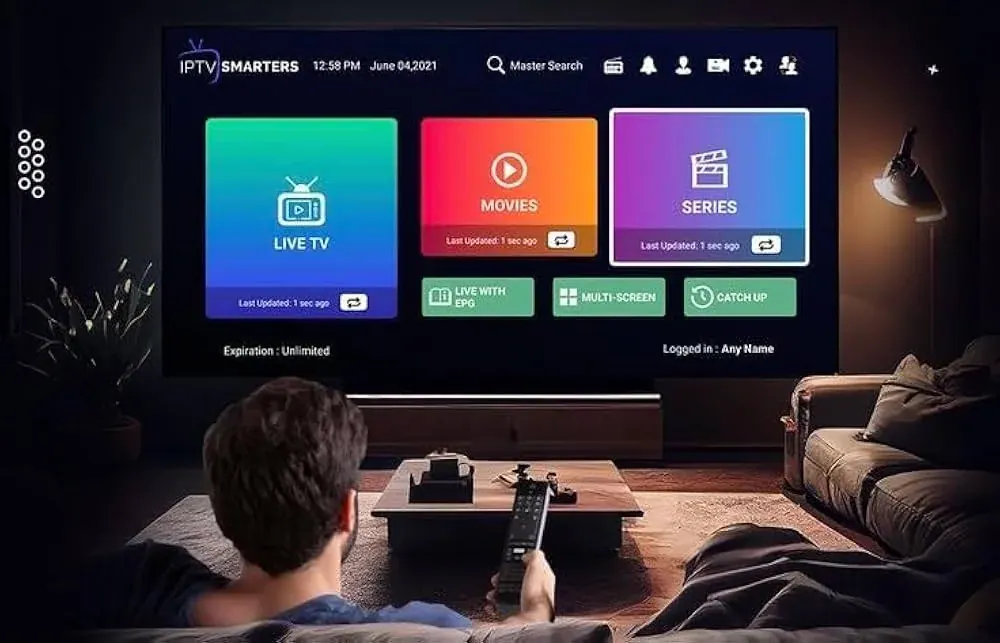
An IPTV Fire Stick setup is the most common one we help with, and for good reason: the Fire TV Stick is inexpensive, fast enough for 4K, and it plugs into any TV with an HDMI port. The only catch is that the best IPTV player apps aren't in the Amazon Appstore, so you install them with a free app called Downloader. It sounds technical, but it takes about 10 minutes, and we'll walk through every screen below.
What you need before you start
- A Fire TV device: Fire TV Stick, Fire TV Stick 4K, Fire TV Stick 4K Max or Fire TV Cube. The 4K Max is our pick for its speed and newer Wi-Fi.
- Your login: username, password and server URL. We send these on WhatsApp after you order.
- An internet connection: the FCC's broadband speed guide lists about 25 Mbps for 4K streaming. HD needs much less.
- About 10 minutes.
IPTV Fire Stick setup: step by step
Step 1: Install Downloader
From the Fire TV home screen, go to Find › Search and type Downloader. Install the free app by AFTVnews (orange icon). You can read more about it on the official Downloader page.

Step 2: Turn on Developer Options
On newer Fire TV software, Developer Options is hidden. Go to Settings › My Fire TV › About, highlight your device name (for example "Fire TV Stick 4K Max") and press the select button seven times. You'll see a message saying you are now a developer. Go back one screen and you'll find Developer Options.
Step 3: Allow Downloader to install apps
Open Developer Options › Install Unknown Apps and switch Downloader to ON. This only lets Downloader install apps; it doesn't change anything else on your Fire TV.
Step 4: Download your IPTV player
Open Downloader, allow access to files if it asks, and type the app link we send you. Select Install when the download finishes. After installing, Downloader offers to delete the installer file. Say yes to save space.
Step 5: Log in with your details
- IPTV Smarters Pro: choose Login with Xtream Codes API, type any name, then your username, password and server URL.
- TiviMate: choose Add playlist › Xtream Codes, enter the server URL, username and password, and select Next.
Step 6: Start watching
The app loads your channels, the TV guide and the on-demand library, usually in under a minute. Add your go-to channels to Favorites so they're one click away.
The best IPTV player for Firestick
| App | Best for | Notes |
|---|---|---|
| TiviMate | A cable-style grid guide | Premium adds recording, multi-view and more |
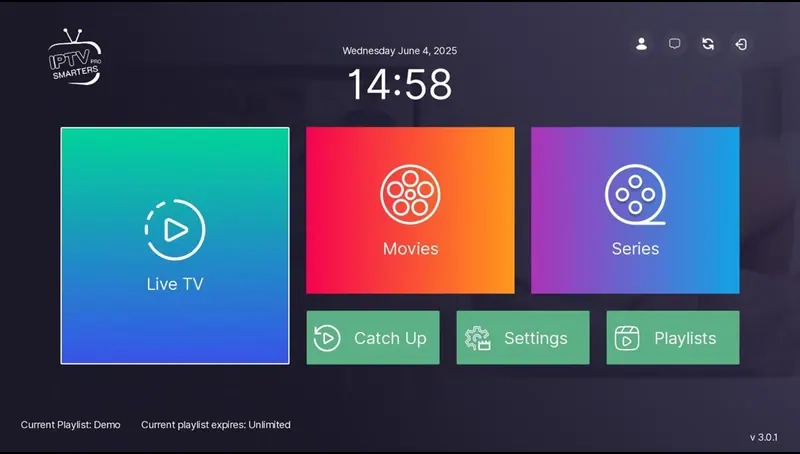
| IPTV Smarters Pro | Simplicity | Separate sections for Live TV, Movies and Series |
| IBO Player | Familiar layout across devices | May require its own activation after a trial |
If you'll mostly watch live channels, TiviMate is the one we recommend. See our TiviMate guide for its best settings.
Getting the best picture on your IPTV Fire Stick
- Use Ethernet. Amazon sells an Ethernet adapter for Fire TV, and third-party ones work too. It's the single biggest fix for buffering.
- Plug into the TV's 4K HDMI port if you have a 4K model.
- Set Display to Auto in Settings › Display & Sounds, and turn on Match Original Frame Rate if you see it.
- Enable hardware decoding in your IPTV app's player settings.
- Free up storage. Uninstall apps you don't use; Fire TV Sticks have limited space.
Fixing common IPTV Fire Stick problems
"Install Unknown Apps" is missing: Developer Options is hidden. Repeat Step 2, pressing select seven times on your device name under About.
The app says "Invalid login": check the server URL. It usually needs to start with http:// and must match exactly. Extra spaces are the most common mistake.
Channels buffer: restart the Fire TV (Settings › My Fire TV › Restart) and your router, then try the FHD version of the channel. If it's still happening, send us the channel name.
The guide is empty: in TiviMate, go to Settings › EPG and update the guide. In Smarters, reload the EPG from the settings menu.
The Fire TV is slow: clear the app cache under Settings › Applications › Manage Installed Applications.
Which Fire TV model is best for an IPTV Fire Stick setup?
| Model | Good for | Our take |
|---|---|---|
| Fire TV Stick Lite / Fire TV Stick | HD TVs, bedrooms | Fine for HD; slower menus |
| Fire TV Stick 4K | 4K TVs | Solid choice for most homes |
| Fire TV Stick 4K Max | 4K TVs, heavy use | Our top pick: faster and newer Wi-Fi |
| Fire TV Cube | Main living room TV | Built-in Ethernet and the most power |
Keeping your IPTV Fire Stick fast over time
Fire TV Sticks slow down as storage fills up and background apps pile up. Every couple of months, uninstall apps you don't use, clear the cache in your IPTV player, and restart the stick from Settings › My Fire TV › Restart. If menus still feel sluggish, a factory reset and a fresh install of your IPTV app takes about 15 minutes and usually makes it feel new again. We're happy to walk you through the reinstall on WhatsApp.
Plans that work on your Fire Stick
Every plan works on the Fire TV Stick with any of the apps above. New to IPTV? Start with the 3-month plan. Already sure? The 12-month plan is our most popular. And if you get stuck on any step of your IPTV Fire Stick setup, message us a photo of the screen on WhatsApp and we'll get you through it.
Plans & pricing
Pick your plan
Same channels and library in every plan. Pay once, no auto-renewal, order on WhatsApp.
3 Months
$11.67 per month · 1 device
Ninety days of live TV, sports, movies and series. A low-commitment way to test IPTV before you cancel cable.
- Live TV, sports, movies and series
- 4K, FHD and HD streams
- TV guide (EPG) included
- Works on Fire TV, Apple TV, Smart TVs, phones
- Setup help on WhatsApp
- No contract, no auto-renewal
6 Months
$7.50 per month · 1 device
Six months of live TV, sports, movies and series for one upfront price. Covers a full season with room to spare.
- Live TV, sports, movies and series
- 4K, FHD and HD streams
- TV guide (EPG) included
- Works on Fire TV, Apple TV, Smart TVs, phones
- Setup help on WhatsApp
- No contract, no auto-renewal
12 Months
Most popular$5.42 per month · 1 device
Our most popular plan: a full year of live TV, sports, movies and series at a low monthly cost.
- Live TV, sports, movies and series
- 4K, FHD and HD streams
- TV guide (EPG) included
- Works on Fire TV, Apple TV, Smart TVs, phones
- Setup help on WhatsApp
- No contract, no auto-renewal
24 Months
Best value$4.58 per month · 1 device
Two full years of live TV, sports, movies and series. The lowest cost per month of any plan.
- Live TV, sports, movies and series
- 4K, FHD and HD streams
- TV guide (EPG) included
- Works on Fire TV, Apple TV, Smart TVs, phones
- Setup help on WhatsApp
- No contract, no auto-renewal
FAQ
Frequently asked questions
Is the Fire Stick good for IPTV?
Yes. The Fire TV Stick 4K Max in particular is fast, supports 4K and HDR, and runs TiviMate and IPTV Smarters Pro smoothly. Add an Ethernet adapter for the steadiest picture.
Why is TiviMate not in the Amazon Appstore?
Many IPTV player apps are distributed outside the Amazon Appstore. The Downloader app lets you install them safely using a link we provide.
Can I use one plan on two Fire Sticks?
You can install it on both, but only one can stream at a time. For two TVs at once, order a second plan.
Does the basic Fire TV Stick work?
Yes, for HD. For 4K channels you need a 4K model, and the 4K Max gives the smoothest experience.