
How to Use IPTV on XCIPTV Player: Setup and Best Settings
On this page
- Why people choose XCIPTV Player
- How to install XCIPTV Player
- Logging in
- Best settings for XCIPTV Player
- Using the guide, favorites and catch-up
- Fixing common XCIPTV Player problems
- Getting around XCIPTV Player with a remote
- Organizing channels for the family
- Keeping the app updated
- More questions about XCIPTV Player
- Moving from another app to XCIPTV Player
- XCIPTV Player features worth knowing
- Troubleshooting table
- Who XCIPTV Player is best for
- A typical first setup
- Using XCIPTV Player on a phone and a TV
- XCIPTV Player vs. other IPTV apps
- Next steps
XCIPTV Player is a popular IPTV app for Android phones, Android TV boxes and Fire TV devices. It's made by OTT Run, it supports Xtream Codes logins, and it puts live TV, a program guide, movies, series and catch-up into one clean interface that works well with a TV remote. This guide shows how to install XCIPTV Player, log in with your subscription, and set it up so channels start fast and the guide shows the right times.
Why people choose XCIPTV Player
- Simple login with Xtream Codes or M3U.
- Built-in TV guide with a clear, remote-friendly layout.
- Movies and series sections separate from live TV.
- Choice of video player inside the app, handy when a channel misbehaves.
- Free to use in its standard version.
If you want the most cable-like grid guide, TiviMate is still our first pick on Android TV (see our TiviMate guide). XCIPTV Player is a strong, free alternative with a gentler learning curve.
How to install XCIPTV Player
On Android phones, tablets and Android TV
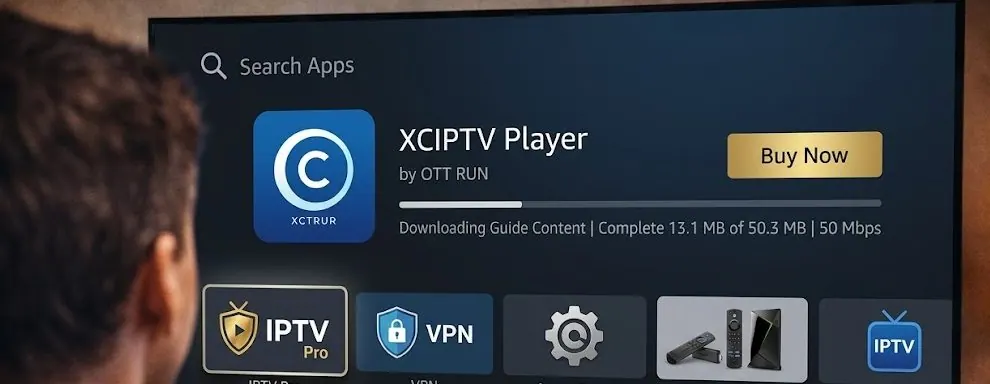
Check the Google Play Store for XCIPTV Player. Store listings can change by region; if you don't see it, we'll send you a download link you can open in your browser or in the Downloader app.
On Fire TV Stick and Fire TV Cube
- Install Downloader from the Amazon Appstore.
- Enable Developer Options (Settings › My Fire TV › About, press select seven times on your device name) and allow Downloader under Install Unknown Apps.
- Open Downloader, enter the XCIPTV link we send, and install it.
Our Fire TV Stick guide shows these steps with more detail.
Logging in
- Open XCIPTV Player.
- Choose the Xtream Codes login.
- Enter your username, password and server URL exactly as we sent them, including http:// and the port number if there is one.
- Select Sign in. The app loads Live TV, Movies, Series and the guide.
Best settings for XCIPTV Player
| Setting | Recommended | Why |
|---|---|---|
| Video player | Default player; switch only if a channel fails | Different players handle some streams better |
| Decoder | Hardware | Smoother HD and 4K |
| Stream format | Default; try the alternative if a channel stutters | Some channels play better in HLS or TS |
| EPG time shift | Match your time zone | Correct program times |
| Parental control | On, with a PIN | Locks categories for kids |
Using the guide, favorites and catch-up
Open Live TV and press right to open the guide. Long-press a channel to add it to Favorites; your list appears at the top. Channels with catch-up show a small icon; open a past program in the guide to watch it. Catch-up depends on the channel.
Fixing common XCIPTV Player problems
Login error: recheck the server URL. Most errors are a missing http:// or a wrong port.
Guide missing: refresh the EPG in settings and set the time shift. If some channels still show "No information," send us their names.
Buffering: use Ethernet or 5 GHz Wi-Fi, try the FHD version of the channel, and check your connection against the FCC broadband speed guide.
App closes on start: clear the app cache (Fire TV: Settings › Applications › Manage Installed Applications › XCIPTV › Clear cache) and reopen it.
Getting around XCIPTV Player with a remote
The layout is simple once you know the main areas:
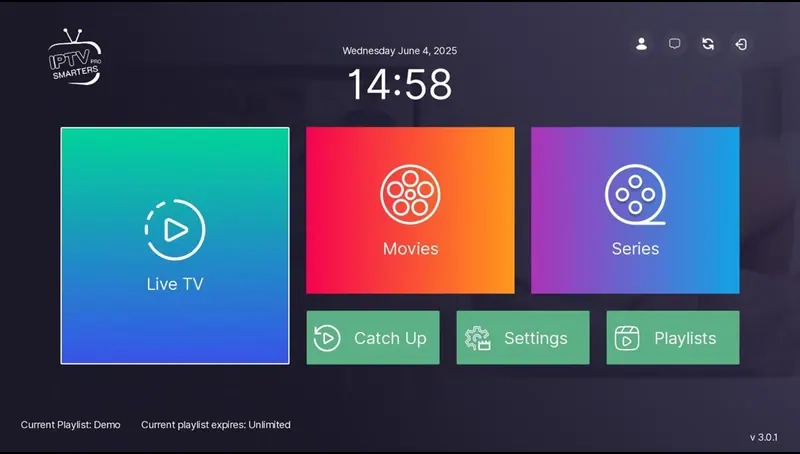
- Home: tiles for Live TV, Movies, Series, Catch-up and Settings.
- Live TV: channel groups on the left, channels in the middle, a preview and program info on the right.
- Guide: press right from the channel list to open the grid for the selected group.
- Movies and Series: browse by category, then open a title for its description and play button.
- Back button: steps back one level; hold it on some remotes to return home.
Organizing channels for the family
A few minutes of setup makes the app easier for everyone in the house. Hide the groups nobody watches in the Live TV settings, create a Favorites list with the channels your family uses every day, and lock adult or late-night categories with a parental PIN. If different people watch different things, keep their favorites in one list but group them together, for example sports first, then news, then kids' channels. It's a small effort that makes the difference between an app people enjoy and one they avoid.
Keeping the app updated
App updates fix bugs and add support for new devices. If you installed the app from a store, updates arrive automatically. If you installed it from a download link, check with us every few months for the latest version, especially if something that used to work stops working after a Fire OS or Android update.
More questions about XCIPTV Player
Is XCIPTV Player free?
The standard version is free to use. You need an IPTV subscription for the channels and library.
Does it work on Android phones?
Yes. The phone layout adapts to touch screens, and the same login works on your phone and TV.
Can I use an M3U link instead of Xtream Codes?
Yes, but Xtream Codes is better: it brings in the guide, movies and series automatically.
Does XCIPTV support catch-up?
Yes, for channels that offer catch-up. Look for the catch-up icon in the guide.
How do I update the app?
If you installed it from a store, updates arrive automatically. If you installed it from a link, ask us for the latest version.
Why do channel logos not appear?
Logos come from the playlist. Missing logos do not affect playback; refreshing the playlist sometimes brings them back.
Moving from another app to XCIPTV Player
Switching apps doesn't change your subscription. Install XCIPTV Player, log in with the same Xtream Codes details, and rebuild your favorites. Keep your old app installed for a week while you get used to the new layout, then uninstall whichever you use less. Many people end up keeping two apps anyway: one for live TV and one for movies and series.
XCIPTV Player features worth knowing
- Themes and layouts: the look can be adjusted in settings; pick the layout that's easiest to read from your couch.
- Multiple players: if a channel won't play in the default player, switching the internal player often fixes it.
- Catch-up: available for channels that support it, from the guide.
- Parental controls: lock categories with a PIN.
- Favorites and recent channels: quick access to what you watch most.
Features vary between versions, so your menus may look slightly different from what we describe.
Troubleshooting table
| Symptom | Try this first |
|---|---|
| Black screen with sound | Switch the internal player or the decoder |
| Guide times off by hours | Set the EPG time shift |
| Movies missing | Log in with Xtream Codes instead of M3U |
| Slow menus | Clear cache, hide unused groups |
| "Account expired" | Renew your plan and refresh the playlist |
Who XCIPTV Player is best for
XCIPTV Player is a good match if you want a free app that covers live TV, movies and series without much setup, and you watch on Android or Fire TV. It's especially popular with people setting up a TV for parents or grandparents, because the home screen has only a few big tiles and the guide is easy to read. Power users who want recording, multi-view or deep customization usually prefer TiviMate Premium, and Apple TV owners need a different app altogether.
A typical first setup
Most people are watching within ten minutes of installing the app: two minutes to install it, two minutes to log in, a minute for the playlist to load, and the rest spent adding favorites and setting the guide time zone. If it's taking much longer, check the troubleshooting table above or message us with a photo of the screen.
Using XCIPTV Player on a phone and a TV
You can install the app on both your phone and your TV and log in with the same details. Your favorites are saved separately on each device, so set them up once on each. With our plans, one device streams at a time: if you start a channel on your phone while the TV is playing, the TV will stop.
If you're helping someone else set up XCIPTV Player remotely, ask them to send a photo of the screen at each step. The layout is consistent enough that a photo tells you exactly where they are and what to press next, which is exactly how we support customers on WhatsApp. It is faster than describing the screen in words, and it avoids mistakes with similar-looking buttons.
XCIPTV Player vs. other IPTV apps
| App | Guide | Price | Best for |
|---|---|---|---|
| XCIPTV Player | Good | Free | Easy all-rounder |
| TiviMate | Excellent grid | Free + Premium | Live TV fans |
| IPTV Smarters Pro | Per channel | Free | Movies and series |
Next steps
XCIPTV Player is a solid free way to watch IPTV on Android and Fire TV. If you need a subscription for it, compare our IPTV subscriptions. Every plan includes an Xtream Codes login. You can also read how to add IPTV on Fire TV Stick in other apps, or browse the full IPTV installation guide. For general Android help, Google's Android support center is useful.