
How to Add IPTV on Fire TV Stick: Apps, Logins and TV Guide
On this page
- What you need to add IPTV on Fire TV Stick
- Add IPTV on Fire TV Stick in TiviMate
- Add IPTV on Fire TV Stick in IPTV Smarters Pro
- Add IPTV on Fire TV Stick in XCIPTV
- Adding and fixing the TV guide
- Running two playlists on one Fire TV Stick
- Common errors when you add IPTV on Fire TV Stick
- Xtream Codes or M3U: which to use on a Fire TV Stick
- A real example: setting up the living room and bedroom
- More questions when you add IPTV on Fire TV Stick
- Checklist after you add IPTV on Fire TV Stick
- Parental controls on Fire TV and in your IPTV app
- Keeping your Fire TV setup secure
- Choosing the right app before you add IPTV on Fire TV Stick
- After you add IPTV on Fire TV Stick: finishing touches
- Next steps
Once your IPTV app is installed, the next job is to add IPTV on Fire TV Stick: connecting your subscription to the app so channels, movies and the TV guide show up. It's the part where most small mistakes happen, like a missing "http://" or a password with an extra space. This guide focuses on that step for the three players we recommend on Fire TV, plus the TV guide, favorites and running more than one playlist. If you haven't installed an app yet, start with our IPTV Fire Stick setup guide, then come back here.
What you need to add IPTV on Fire TV Stick
- An IPTV player installed on the Fire TV Stick (TiviMate, IPTV Smarters Pro or XCIPTV).
- Your login: server URL, username and password (Xtream Codes), plus an M3U link as a backup.
- Your phone nearby. The free Amazon Fire TV app turns your phone into a keyboard, which makes typing a long server address much easier. It's on Google Play and the App Store.
Add IPTV on Fire TV Stick in TiviMate
- Open TiviMate and select Add playlist.
- Choose Xtream Codes.
- Enter the server address, username and password. Select Next.
- Check the summary (number of channels, movies and series) and select Done.
- Open the guide and add your go-to channels to Favorites (long-press a channel).
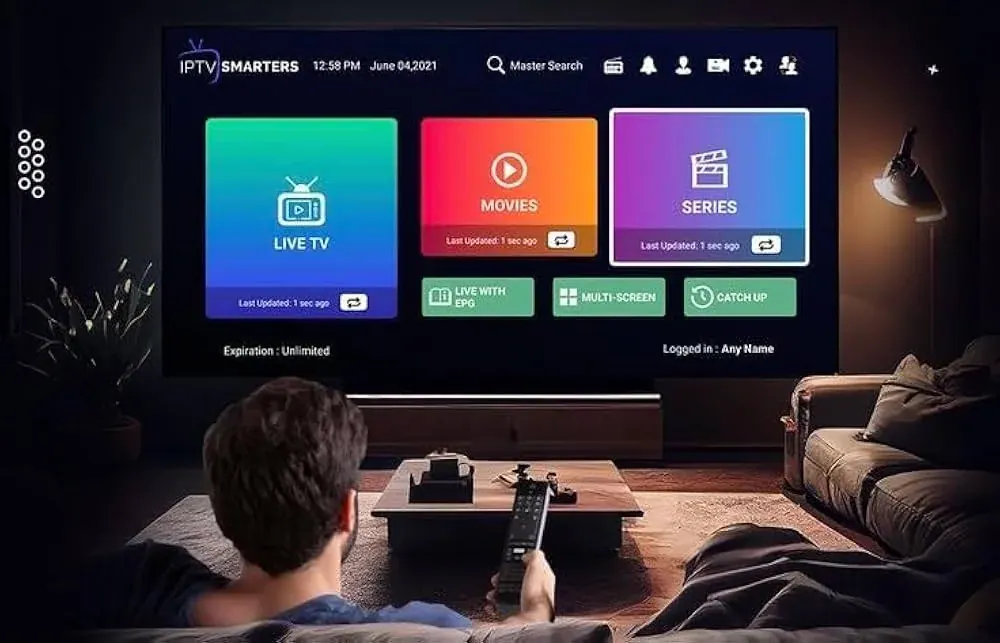
Add IPTV on Fire TV Stick in IPTV Smarters Pro
- Open IPTV Smarters Pro and choose Login with Xtream Codes API.
- Type any name (for example "Living Room"), then your username, password and server URL.
- Select Add User. The app downloads your channels, the guide and the on-demand catalog.
- Choose Live TV to start watching, or Install EPG if the guide is empty.
Add IPTV on Fire TV Stick in XCIPTV
- Open XCIPTV Player and select the Xtream Codes login option.
- Enter the username, password and server URL.
- Sign in and wait for the content to load.
Our XCIPTV Player guide covers its settings in detail.
Adding and fixing the TV guide
With Xtream Codes, the guide normally loads by itself. If it's empty or wrong:
- TiviMate: Settings › EPG › Update EPG. Adjust the time shift if programs are off by a few hours.
- IPTV Smarters Pro: use Install EPG on the home screen or reload it from Settings.
- Still empty? Add the XMLTV link we sent as an extra EPG source in the app's playlist settings.
Running two playlists on one Fire TV Stick
Sometimes you'll want two logins on one stick: for example when switching providers, or when the household has two plans and one person uses the bedroom TV. Here's how:
| App | How to add a second playlist |
|---|---|
| TiviMate | Settings › Playlists › Add playlist (multiple playlists need TiviMate Premium) |
| IPTV Smarters Pro | List Users › Add New User, then switch between users |
| XCIPTV | Log out and log in with the other account, or use its multi-profile option if available |
Remember that each of our plans streams on one device at a time, so two playlists on one stick don't let two TVs play the same plan simultaneously.
Common errors when you add IPTV on Fire TV Stick
"Authorization failed" or "Invalid login": the server URL must include http:// and, if given, the port (for example :8080). Paste it using the Fire TV phone app to avoid typos.
The app shows 0 channels: the login worked but the playlist didn't load. Restart the stick (Settings › My Fire TV › Restart) and try again. If it persists, message us.
Channels buffer: use an Ethernet adapter or 5 GHz Wi-Fi, and try the FHD version of the channel. The FCC broadband speed guide lists about 25 Mbps for 4K.
"Account expired": your plan has ended. See our guide to IPTV recharge to renew and keep the same login.
Xtream Codes or M3U: which to use on a Fire TV Stick
When you add IPTV on Fire TV Stick, you'll almost always want Xtream Codes. It brings in live channels, the TV guide, movies, series and catch-up in one step. Use the M3U link only in apps that don't support Xtream Codes, such as VLC or Kodi's Simple Client.
| App | Xtream Codes | M3U link | Guide loads automatically |
|---|---|---|---|
| TiviMate | Yes | Yes | With Xtream Codes |
| IPTV Smarters Pro | Yes | Yes | With Xtream Codes |
| XCIPTV Player | Yes | Yes | With Xtream Codes |
| VLC | No | Yes | No guide |
| Kodi | No (Simple Client) | Yes | With a separate EPG link |
A real example: setting up the living room and bedroom
A common setup we help with: a family has a Fire TV Stick 4K Max on the living room TV and an older Fire TV Stick in the bedroom. They add IPTV on Fire TV Stick in both rooms using the same app (TiviMate), so everyone learns one interface. The living room stick gets an Ethernet adapter because that's where the big games are watched. The bedroom stick stays on Wi-Fi and uses the FHD versions of channels, which play smoothly on the older hardware.
Because each of our plans streams on one device at a time, this family orders two plans: one per TV. Both logins live in the same WhatsApp chat, both renew on the same date, and each TV has its own favorites. It's a simple, reliable setup, and it takes about 20 minutes to do both rooms.
More questions when you add IPTV on Fire TV Stick
Do I need to add IPTV again after a Fire TV update?
Usually not. Your app and login stay in place. If an update causes a problem, clear the app cache and reopen it before re-entering anything.
Can I add IPTV on Fire TV Stick Lite?
Yes. The Lite model plays HD channels well. For 4K, you need a 4K model.
How do I move my setup to a new Fire TV Stick?
Install the same app on the new stick and add the same login. Favorites are stored per app, so in most apps you rebuild them, which takes a few minutes.
Why does the app ask for a "playlist name"?
It is just a label for you. Use something simple, like "Home", so you recognize it later.
What if my remote typing keeps making mistakes?
Use the Amazon Fire TV phone app to paste the login. It avoids typos in long server addresses.
Checklist after you add IPTV on Fire TV Stick
- Play three channels from different groups to confirm the login works.
- Open the guide and check that program times match your time zone.
- Start a movie, pause it, and resume it to test the on-demand library.
- Add your favorite channels.
- Note your plan's expiration date shown in the app.
Parental controls on Fire TV and in your IPTV app
Fire TV has its own parental controls under Settings › Preferences › Parental Controls, which can require a PIN for purchases and certain content in Amazon's apps. IPTV apps have separate controls: in TiviMate and IPTV Smarters Pro, set a PIN and lock specific channel groups or categories. Use both if kids use the TV on their own; the Fire TV PIN protects the device, and the app PIN protects the channel list.
Keeping your Fire TV setup secure
Once you've added your IPTV apps, go back to Developer Options and switch off "Install unknown apps" for Downloader. You can turn it back on the next time you need to install or update something. Only install apps from sources you trust, keep Fire OS updated, and don't share your login. These small habits keep your stick fast and your account yours.
Choosing the right app before you add IPTV on Fire TV Stick
If you're still deciding which app to use, think about how you watch. Mostly live channels and sports? TiviMate's grid guide and fast channel switching make it the best fit. A mix of movies, series and some live TV? IPTV Smarters Pro keeps each type of content in its own clear section. Want something free and simple for a parent? XCIPTV Player is easy to learn. You can install more than one and add IPTV on Fire TV Stick in each of them, then keep the one your household prefers.
Finally, keep your Fire TV Stick's storage in check. IPTV apps cache channel logos and guide data, and a nearly full stick slows everything down. Every few months, clear the cache of your IPTV apps and uninstall anything you no longer use. It's the easiest way to keep the menus as quick as the day you set it up.
After you add IPTV on Fire TV Stick: finishing touches
- Hide channel groups you never watch.
- Set a parental PIN if kids use the TV.
- Move your IPTV app to the front of the Fire TV home row: highlight it, press the menu button (three lines) and choose Move.
- Learn to search quickly with our tips to search on IPTV with a Firestick remote.
Next steps
That's all it takes to add IPTV on Fire TV Stick. If you don't have a login yet, compare our IPTV subscriptions. New customers often start with the 3-month plan. For every other device, see the full IPTV installation guide.