
IPTV Installation Guide: Set Up IPTV on Any Device
Our IPTV installation guide covers every device and app in your home, from Fire TV Stick and Samsung TVs to Kodi, VLC and Roku.
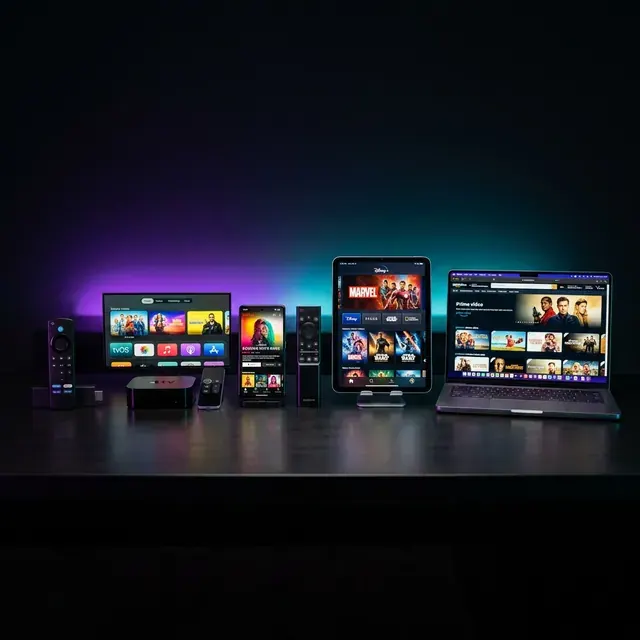
This IPTV installation guide brings together every setup walkthrough we've written, organized by device and by task. Installing an app for the first time, adding your login, fixing the TV guide, renewing your plan: you'll find the right article below. Most setups take 5 to 15 minutes, and if you get stuck at any point, send us a photo of your screen on WhatsApp and we'll walk you through it.
How any IPTV installation works
Every device follows the same three stages, even though the menus look different:
- Install an IPTV player app on your TV, streaming stick, phone or computer.
- Add your login: an Xtream Codes login (server URL, username, password) or an M3U link.
- Adjust a few settings: the TV guide time zone, favorites and the player options.
The only exceptions are MAG boxes and some Smart TV apps, which use a portal or MAC address instead of a typed login. This IPTV installation guide points out those differences where they apply.
IPTV installation guide by device
| Device | Recommended app | Guide |
|---|---|---|
| Fire TV Stick / Fire TV | TiviMate or IPTV Smarters Pro | Fire TV Stick setup · Add IPTV on Fire TV Stick |
| Android TV / Google TV | TiviMate | TiviMate setup |
| Samsung Smart TV | IPTV Smarters Pro or IBO Player Pro | IPTV Smarters Pro on Samsung TV |
| Apple TV | iPlayTV, UHF, Smarters Player Lite | Best IPTV apps for Apple TV |
| Roku | Screen mirroring or AirPlay | IPTV on Roku |
| Windows, Mac, phones | VLC | IPTV on VLC |
| Kodi (any platform) | PVR IPTV Simple Client | IPTV on Kodi |
| Android / Fire TV | XCIPTV Player | XCIPTV Player guide |
| Avov TV Online box | Built-in portal or TiviMate | Avov TV Online setup |
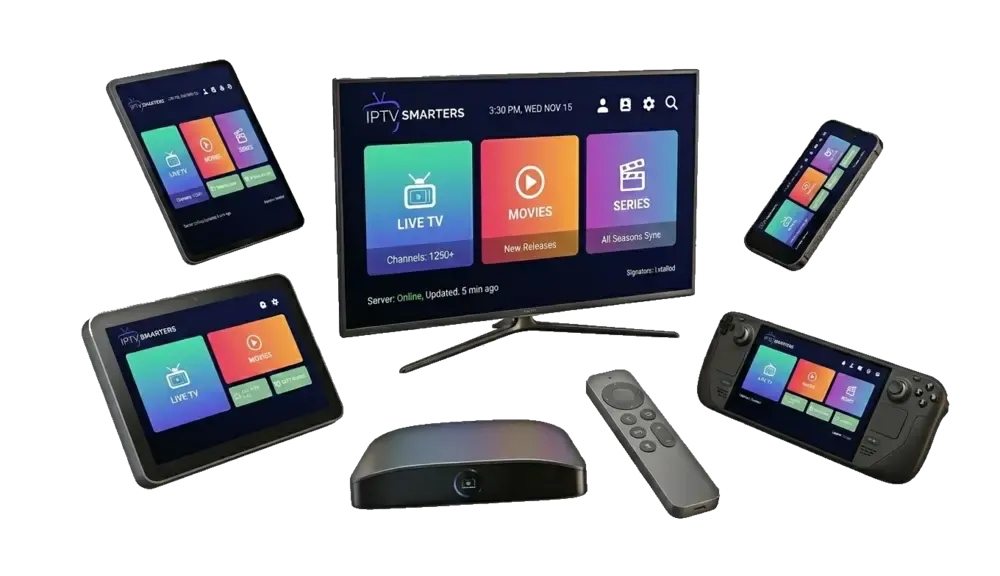
IPTV installation guide by task
Adding your subscription
Once the app is installed, you'll add an IPTV playlist with Xtream Codes or an M3U link. That article covers TiviMate, IPTV Smarters Pro, IBO Player, VLC and MAG boxes.
Getting the settings right
If streams stutter or the guide shows the wrong times, our guide to configuring IPTV settings explains the decoder, stream format, buffer, time zone and network tweaks that fix most issues.
Subtitles and captions
Need captions for a movie or a live channel? See how to turn on subtitles on IPTV in each app and on Fire TV and Apple TV.
Finding channels quickly
Tired of scrolling? Learn how to search on IPTV with a Firestick remote, including the phone-keyboard trick.
Buying and renewing
New to IPTV? Start with how to purchase IPTV safely. Already a customer? Here's how an IPTV recharge works without losing your setup.
Before you start any installation
- Update your device to the latest software.
- Use Ethernet or 5 GHz Wi-Fi for the TV you watch most.
- Check your speed at the TV. The FCC's broadband speed guide lists about 25 Mbps for 4K streaming.
- Keep your login handy, ideally on your phone so you can copy and paste.
- Use your phone as a keyboard where possible; typing a server URL with a TV remote is slow.
Which device should you use?
If you're buying something new for IPTV, here's our honest ranking for most households:
- Fire TV Stick 4K Max: best value, runs every major IPTV app.
- NVIDIA Shield or a Google TV device: excellent with TiviMate, great for recording.
- Apple TV 4K: smoothest playback if you're in the Apple world.
- Smart TV apps: convenient, but TV processors are often slower.
- Roku: not recommended for daily IPTV; it doesn't run the usual players.
Common installation problems and quick fixes
| Problem | Quick fix |
|---|---|
| "Invalid login" | Check the server URL: http://, port number, no extra spaces |
| Empty TV guide | Refresh the EPG and set the time shift |
| Buffering | Ethernet or 5 GHz, FHD version of the channel, reboot the router |
| App won't install on Fire TV | Enable Developer Options and allow Downloader |
| "Account expired" | Renew with an IPTV recharge |
What to do after your IPTV installation
Once your app is running, a few minutes of setup make daily viewing easier for everyone:
- Favorites: add the channels you watch every day.
- Hide groups nobody in the house watches.
- Parental PIN for categories the kids shouldn't browse.
- Guide time zone set to Eastern, Central, Mountain or Pacific.
- Save your login somewhere safe for the next device you set up.
Keep this IPTV installation guide bookmarked: when you get a new TV or streaming stick, the right article is one click away.
New guides added regularly
We add a new walkthrough whenever customers ask about a device or app we haven't covered yet. If there's a setup you'd like explained, tell us on WhatsApp and it may become the next article in this IPTV installation guide.
Tip: bookmark this page on your phone so it's handy the next time you set up a device for a family member.
Get help with your installation
This IPTV installation guide covers the most common setups, but every home is a little different. If your screen doesn't match what we describe, message us on WhatsApp with a photo and we'll tell you exactly what to press. Don't have a login yet? Compare our IPTV subscriptions below. Every plan includes Xtream Codes, an M3U link and setup help.
Plans & pricing
Pick your plan
Same channels and library in every plan. Pay once, no auto-renewal, order on WhatsApp.
3 Months
$11.67 per month · 1 device
Ninety days of live TV, sports, movies and series. A low-commitment way to test IPTV before you cancel cable.
- Live TV, sports, movies and series
- 4K, FHD and HD streams
- TV guide (EPG) included
- Works on Fire TV, Apple TV, Smart TVs, phones
- Setup help on WhatsApp
- No contract, no auto-renewal
6 Months
$7.50 per month · 1 device
Six months of live TV, sports, movies and series for one upfront price. Covers a full season with room to spare.
- Live TV, sports, movies and series
- 4K, FHD and HD streams
- TV guide (EPG) included
- Works on Fire TV, Apple TV, Smart TVs, phones
- Setup help on WhatsApp
- No contract, no auto-renewal
12 Months
Most popular$5.42 per month · 1 device
Our most popular plan: a full year of live TV, sports, movies and series at a low monthly cost.
- Live TV, sports, movies and series
- 4K, FHD and HD streams
- TV guide (EPG) included
- Works on Fire TV, Apple TV, Smart TVs, phones
- Setup help on WhatsApp
- No contract, no auto-renewal
24 Months
Best value$4.58 per month · 1 device
Two full years of live TV, sports, movies and series. The lowest cost per month of any plan.
- Live TV, sports, movies and series
- 4K, FHD and HD streams
- TV guide (EPG) included
- Works on Fire TV, Apple TV, Smart TVs, phones
- Setup help on WhatsApp
- No contract, no auto-renewal
FAQ
Frequently asked questions
How long does IPTV installation take?
Most setups take 5 to 15 minutes. Fire TV Stick installs take a little longer the first time because you install the Downloader app first.
Which IPTV app should I install?
TiviMate on Fire TV and Android TV, iPlayTV or UHF on Apple TV, IPTV Smarters Pro or IBO Player Pro on Samsung and LG TVs, and VLC for a quick test on a computer.
Do I need technical skills?
No. If you can install an app on your phone, you can install an IPTV app on your TV. We also help on WhatsApp step by step.
Can I install IPTV on more than one device?
Yes. You can install the app on several devices and switch between them. Each plan streams on one device at a time.