
How to Add an IPTV Playlist in Any App (M3U and Xtream Codes)
On this page
- M3U link or Xtream Codes: which should you use?
- How to add an IPTV playlist in TiviMate
- How to add an IPTV playlist in IPTV Smarters Pro
- How to add an IPTV playlist in IBO Player
- How to add an IPTV playlist in VLC
- How to add an IPTV playlist on a MAG box
- Adding the TV guide (EPG)
- Common mistakes when you add an IPTV playlist
- Managing several playlists after you add an IPTV playlist
- How to add an IPTV playlist on phones and Apple TV
- Understanding the parts of your login
- What happens after you add an IPTV playlist
- Questions people ask when they add an IPTV playlist
- When a playlist won't load
- Editing a playlist instead of starting over
- Is it safe to add an IPTV playlist?
- Next steps
Whatever app you use, the first thing you'll do is add an IPTV playlist. A playlist is simply the list of channels (and often movies and series) that your provider gives you. Every IPTV player has a way to add one, but each app names the button differently and asks for slightly different details. This guide explains the two playlist formats, then shows exactly where to add an IPTV playlist in the apps our customers use most.
M3U link or Xtream Codes: which should you use?
Most providers, including us, give you both. Here's the difference:
| Xtream Codes (API) | M3U link | |
|---|---|---|
| What you enter | Server URL, username, password | One long web address |
| TV guide | Loads automatically | Often needs a separate EPG link |
| Movies and series | Organized in their own sections | Sometimes mixed into the channel list |
| Catch-up | Supported where available | Limited |
| Best for | TiviMate, IPTV Smarters Pro, XCIPTV, IBO Player | VLC, Kodi, simple players |
Our advice: when you add an IPTV playlist, choose Xtream Codes whenever the app offers it. Use the M3U link only for players that don't support Xtream Codes.
How to add an IPTV playlist in TiviMate
- Open TiviMate and select Add playlist (or Settings › Playlists › Add playlist if you already have one).
- Choose Xtream Codes.
- Enter the server address, username and password, then select Next.
- TiviMate shows how many channels, movies and series it found. Select Done.
TiviMate imports the TV guide automatically with Xtream Codes. More tips in our TiviMate guide.
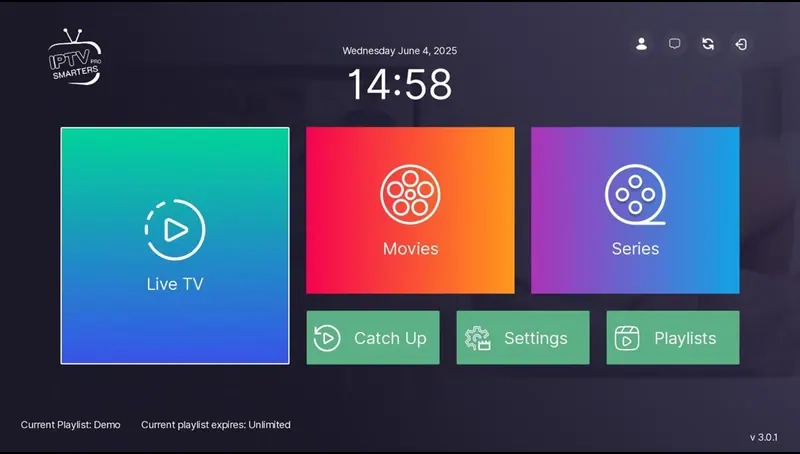
How to add an IPTV playlist in IPTV Smarters Pro
- Open the app and choose Add user (on first launch you'll see login options right away).
- Select Login with Xtream Codes API.
- Type any name, then your username, password and server URL.
- Select Add User and wait for the content to load.
If you only have an M3U link, choose Load Your Playlist or File/URL instead and paste it.
How to add an IPTV playlist in IBO Player
IBO Player works a little differently: you don't type the login on the TV. Instead:
- Install IBO Player (Pro) on your Smart TV or streaming device and open it.
- Note the MAC address and device key shown on the screen.
- Send us a photo of that screen on WhatsApp. We add your playlist to the device through the app's website.
- Restart IBO Player. Your channels appear.
How to add an IPTV playlist in VLC
VLC doesn't support Xtream Codes, so use the M3U link. On a computer, go to Media › Open Network Stream, paste the link and select Play. Then open the playlist view (Ctrl + L on Windows) to browse channels. Our VLC guide covers phones and Macs too.
How to add an IPTV playlist on a MAG box
MAG boxes use a portal instead of a playlist. Send us the MAC address from the sticker under the box, then enter the portal URL we send in Settings › System settings › Servers › Portals. Reboot and the portal loads.
Adding the TV guide (EPG)
With Xtream Codes, the guide usually loads on its own. With an M3U link, many apps need a separate EPG address (an XMLTV link ending in .xml or .xml.gz). Look for EPG or TV guide in the app's playlist settings and paste the link we provide. Then refresh the EPG. If program times look a few hours off, adjust the EPG time shift to your time zone.
Common mistakes when you add an IPTV playlist
- Missing http:// at the start of the server URL.
- Extra spaces copied at the end of the username or password.
- Wrong port. If your URL includes a number like :8080, keep it.
- Old playlist still active. In apps with several playlists, make sure the new one is selected.
- Typing on a TV keyboard. Use your phone as a keyboard where possible: the Fire TV app, Google TV remote app or iPhone keyboard prompt on Apple TV save a lot of time.
Managing several playlists after you add an IPTV playlist
Some apps let you keep more than one playlist, which is handy when you're switching providers or testing a new plan. In TiviMate, Premium supports multiple playlists; in IPTV Smarters Pro you can add several users and switch between them. Name each one clearly so you know which is which.
How to add an IPTV playlist on phones and Apple TV
Phones and Apple devices use slightly different apps, but the steps are almost identical:
- iPhone and iPad (Smarters Player Lite): tap Add user, choose Login with Xtream Codes API, paste your details and tap Add user.
- Apple TV (iPlayTV or UHF): choose Add playlist or Add source, pick Xtream Codes, and use the iPhone keyboard prompt that pops up to type faster.
- Android phones (IPTV Smarters Pro): same as on Fire TV: Login with Xtream Codes API, then your details.
More on Apple devices in our comparison of the best IPTV apps for Apple TV.
Understanding the parts of your login
When you add an IPTV playlist, each part of your login has a job. Knowing what they are makes typos easier to spot:
| Part | Looks like | Common mistake |
|---|---|---|
| Server URL | http://example-server.com:8080 | Missing http:// or port |
| Username | A mix of letters and numbers | Auto-capitalized first letter on phones |
| Password | A mix of letters and numbers | Extra space at the end when pasting |
| M3U link | A long URL containing your username and password | Cut off when copied from a message |
| EPG link | A URL ending in .xml or .xml.gz | Pasted into the playlist field instead of the EPG field |
A tip for phones: turn off auto-capitalization, or paste the details instead of typing. Usernames and passwords are case-sensitive.
What happens after you add an IPTV playlist
The first load takes the longest. The app downloads the full channel list, the TV guide for the next few days and the movie and series catalog. On a fast connection that's under a minute; on older devices, give it two or three. After that, most apps only refresh what changed. If you edit your playlist later (for example after a renewal), use the app's Refresh or Update playlist option rather than deleting and re-adding it, so your favorites stay in place.
Questions people ask when they add an IPTV playlist
Can I add the same playlist on several devices?
Yes. You can add it on your TV, phone and laptop. With our plans, one device streams at a time, so only one of them plays at any given moment.
Why does my playlist show channels but no movies?
You may have added the M3U link in an app that only reads live channels, or the app hides on-demand content in a separate menu. Use the Xtream Codes login where possible.
How often should I refresh the playlist?
Most apps refresh automatically every day or when they start. Refresh manually if channels were added or renamed and you do not see the change.
Can I rename or reorder channels?
In TiviMate you can rename and reorder channels and groups. Other apps offer favorites instead, which is usually enough.
What if the app asks for a "portal URL"?
That app expects a Stalker/MAG-style portal instead of a playlist. Send us the MAC address it shows and we will set it up for you.
Do I need to add the EPG separately every time?
No. Once added, the guide refreshes on its own. You only re-enter it if you delete and re-add the playlist.
When a playlist won't load
If the app accepts your login but nothing appears, or it spins forever, work through this list:
- Wait two minutes. Large playlists take time on the first load, especially on older devices.
- Check the date and time on your device. A wrong system clock can break secure connections.
- Restart the device and router, then open the app again.
- Test the M3U link in VLC on a computer. If it plays there, the problem is the app, not the login.
- Clear the app cache (not the data) and try again.
- Send us a screenshot of any error message; the exact wording tells us a lot.
Editing a playlist instead of starting over
If your server address or password changes, you don't need to delete everything. In TiviMate, open Settings › Playlists, select the playlist and choose Edit. In IPTV Smarters Pro, open the user list and edit the user. Editing keeps your favorites and hidden groups, which saves you from rebuilding your setup from scratch.
Is it safe to add an IPTV playlist?
The playlist itself is just a list of links. What matters is where your app comes from and who your provider is. Install players from official stores or links you trust, and keep your login private. For general tips on avoiding online scams when you pay for services, the FTC's scam guide is worth a read.
Next steps
Now you know how to add an IPTV playlist in the most common apps. If you still need a service, compare our IPTV subscriptions. Every plan includes both an Xtream Codes login and an M3U link. For device-specific walkthroughs, see our IPTV installation guide.